Give your workspace a more deliberate visual direction
An office photo brings together more than a desk: the wall behind it, visible storage, the window and the things that appear in the background. Explore those elements as a set when you want a more considered look for a home office or an existing work area.
Choose office, then a style and lighting mood. Explain how you use the space, such as individual desk work or video calls, and name the surfaces or storage appearance you want to reconsider.
The image supports a visual brief. It does not certify ergonomics, calculate desk capacity, assess screen glare or verify fire, access and workplace requirements.
Define the desk area's palette
Start with the desk finish and the wall around it. A muted wall tone with lighter wood may suggest a different character from an all-white setting. Describe the visual relationship you want rather than expecting the image to specify furniture.
Open the composer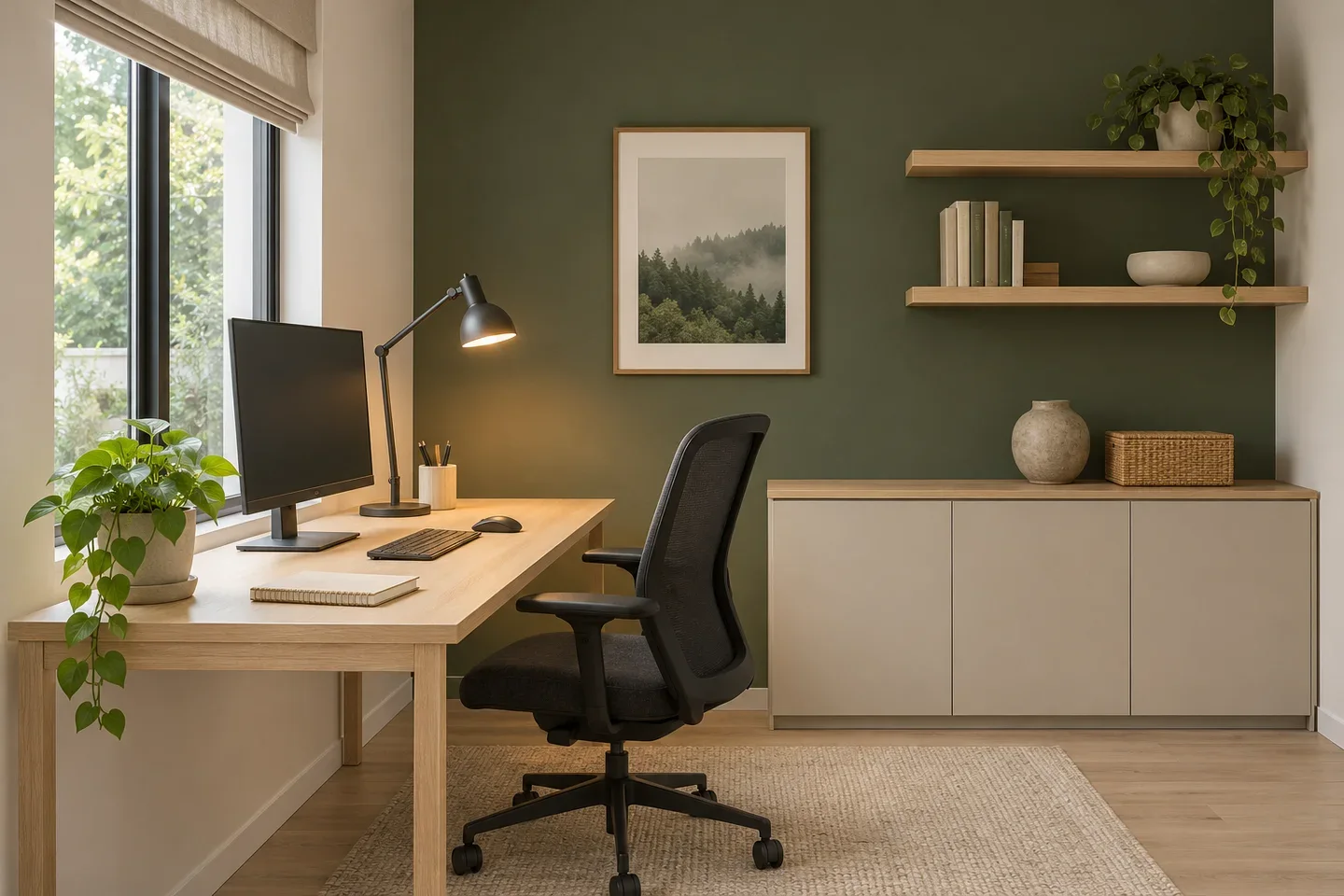
Make storage part of the room's appearance
Closed storage and open shelving create different impressions in a photo. Explore whether a quieter cabinet face, a simpler shelf arrangement or a repeated material helps the space look more coherent.
Open the composer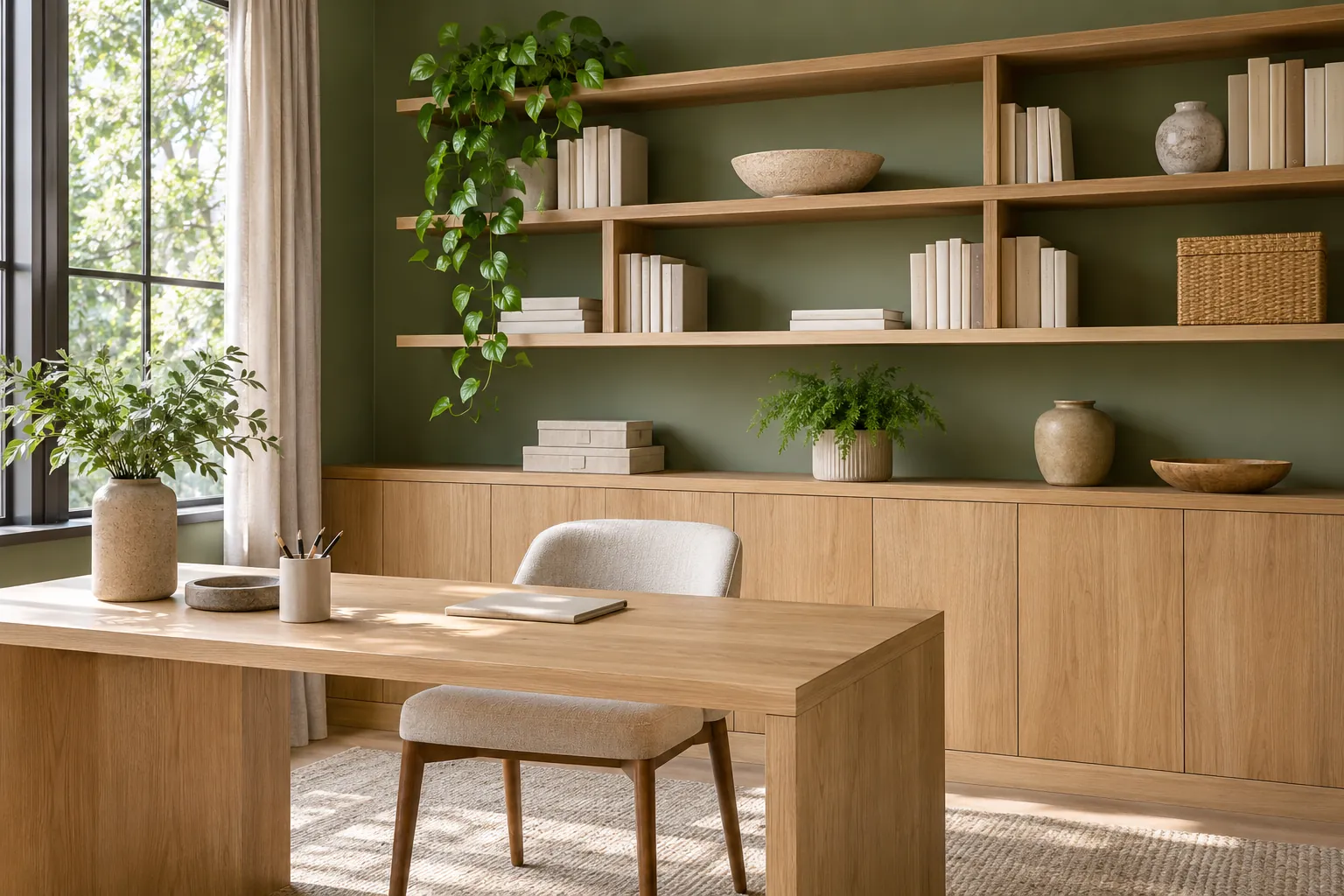
Consider the backdrop as well as the desk
A working area may also be the background for calls. Include the visible wall and storage in the brief, and choose a lighting mood that communicates your intended atmosphere without treating the result as a glare assessment.
Open the composer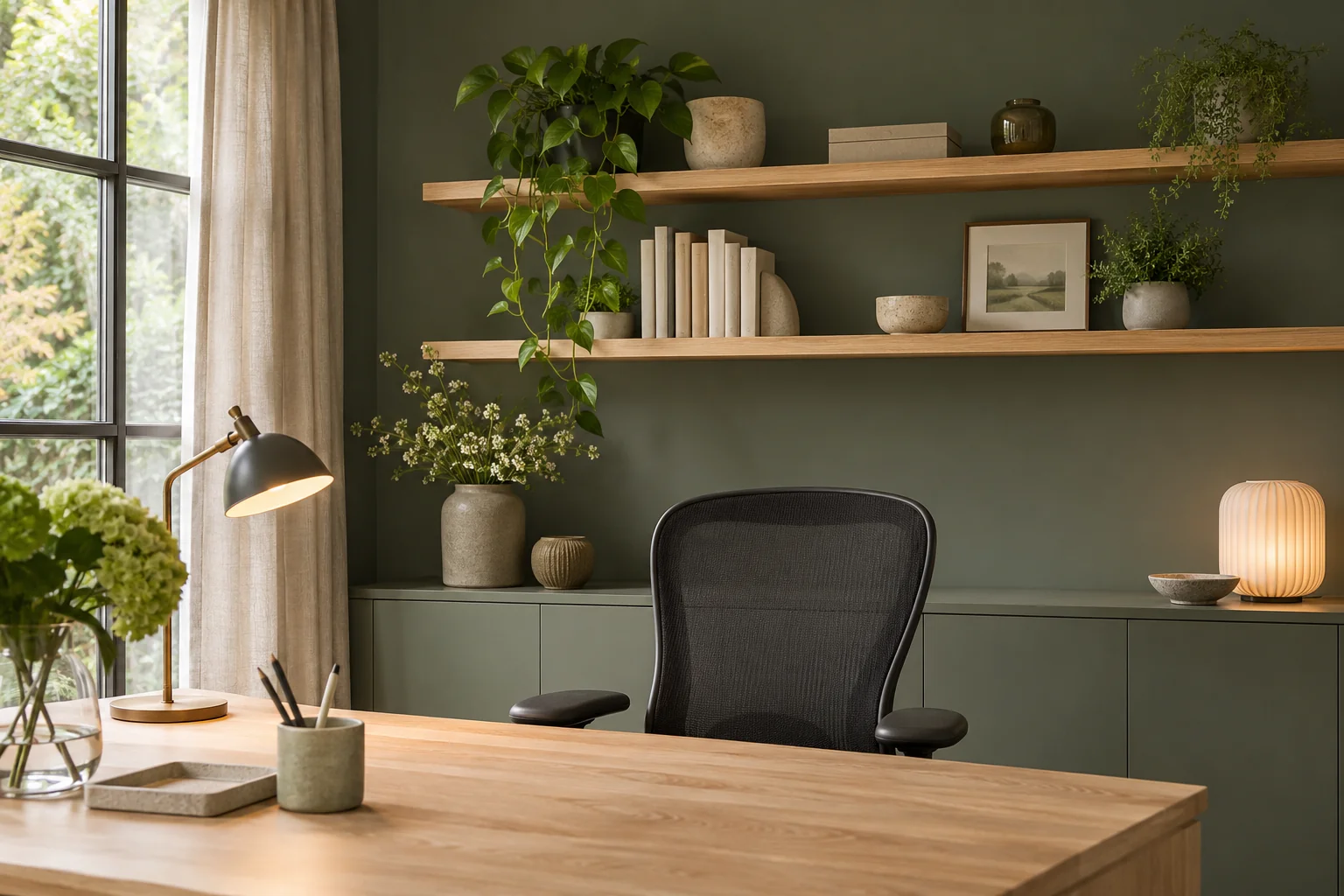
Office inspiration grounded in a real workspace photo
Clarify the visual brief while keeping workplace decisions separate.
Use-led instructions
Describe whether the pictured area is for focused desk work, calls or another everyday activity so the visual request has a purpose.
Surface and storage exploration
Compare wall colors, timber tones and the appearance of visible storage as parts of the same room.
A basis for discussion
Use the concept to communicate a preferred look to colleagues or a designer, then verify furniture fit, lighting and relevant requirements independently.
How to explore a different office look
Show the desk, storage and surrounding walls rather than just the desktop.
Make a visual brief for your work area
- 01
Photograph the workspace context
Include the main desk, visible storage and nearby window if possible. Keep confidential documents and readable screen content out of the photo.
- 02
Explain the use and the visual change
Select office, a style and lighting. Add a concise note about the workspace's purpose and a finish or backdrop you want to explore.
- 03
Select the generation options
Open settings, choose a supported model and output count, and review the ratio and displayed credits before submitting.
- 04
Review the look and verify the practical details
Compare the palette and storage appearance with your original. Check real desk dimensions, seating, lighting, access and any applicable workplace requirements separately.
An office concept built from wood, green and simple storage
The illustration places a pale timber desk beside a window, with a muted green wall and low closed storage. It explores a restrained combination of work surfaces, background color and visible belongings.
For your own office, describe the background that is actually important: shelves behind the chair, a shared wall or a corner used for calls. Avoid adding a long list of equipment if the main question is about color and visual clutter.
The pictured office connects a timber desk and shelving with a muted green backdrop. For your own brief, choose the surface or background that matters most and describe how you want the surrounding storage to relate to it.
AI Office Design FAQ
Can I use a home-office photo?
Yes. This page covers a photographed work area, including a home office. Show the desk and surrounding room so the request has more context than a close-up of a laptop.
What should I include in an office design note?
Describe the area's everyday use and one visual priority, such as warmer desk materials, quieter storage fronts or a simpler call backdrop. Keep the request focused on what you want to see change.
Does the image verify an ergonomic setup?
No. Chair position, desk height, reach and screen placement need assessment using the actual user and equipment. A visually convincing image is not an ergonomic evaluation.
Can I plan how many desks fit in an office?
This photo-based concept does not calculate how many people the room holds, how many desks fit, or whether the paths through it meet workplace rules. Use measured planning and qualified advice for capacity and access.
Can my choice of lighting tell me for sure whether my screen will have glare?
No. The lighting option explores the image's mood. Actual glare depends on window orientation, time of day, screen position and fixtures, which need checking in the real workspace.
Can AI design my office layout?
This page can explore the appearance of an office from a photo, including desk-area finishes, storage and lighting. It does not provide a measured office layout, calculate how many desks fit or check walking routes and workplace requirements.
How much does AI interior design cost?
For an office request here, the total in credits is the selected model's unit price multiplied by the number of images. Choose the supported settings and review the displayed total before generating; this is image generation rather than a quote for professional workplace design.